


|
Getting your Trinity Audio player ready...
|
A hacked WordPress website does not always stop working.
Sometimes the pages continue loading normally while malicious code runs quietly in the background.
The infection may create spam pages, redirect visitors, steal information, install a web shell, damage search rankings, or give an attacker continued access to the website.
That is why malware detection is only the beginning. You must remove the malicious code, investigate how it entered the website, and strengthen the site against another attack.
In this case, Jetpack Security detected three malicious files on a WordPress website we were managing. Two of the threats could be automatically removed from the Jetpack dashboard.
Here is how we handled the infection and what website owners should do after Jetpack fixes a threat.
Important: Jetpack Scan is a valuable detection and repair tool, but no automated scanner can guarantee that every part of an infected website is clean. Serious infections may require a complete manual security review.
What Jetpack Found on the Website
The first warning appeared inside the WordPress dashboard.
Jetpack reported that its scanner had found security threats requiring immediate attention.
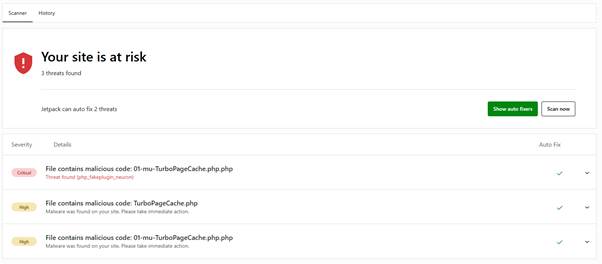
When we opened the Jetpack Protect section, it reported three infected files:
- One critical threat
- Two high-severity threats
- Two threats eligible for automatic repair
The suspicious files used names associated with TurboPageCache, including files located inside WordPress plugin and must-use plugin directories.
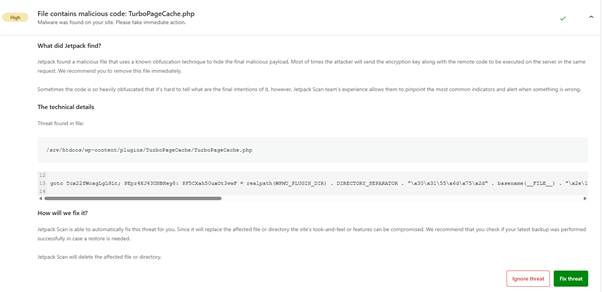
One of the files was identified as a known fake malicious plugin capable of installing a web shell.
A web shell is particularly dangerous because it can potentially allow an attacker to execute commands, upload more files, modify the website, access sensitive information, or regain control after an incomplete cleanup.
Another file contained heavily obfuscated PHP code.
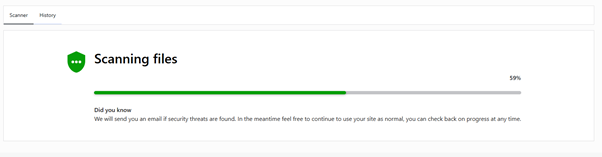
Obfuscation makes code intentionally difficult for people and security tools to understand. Although legitimate developers sometimes use obfuscation, it is also commonly used by attackers to conceal malicious instructions.
Jetpack marked the files for immediate removal.
How Jetpack Scan Works
Jetpack Scan checks important parts of a WordPress installation for malicious code, suspicious changes, known vulnerabilities, and altered files.
According to Jetpack’s official documentation, the scanner checks:
- Plugin files
- Must-use plugin files
- Theme files
- Files inside the uploads directory
- Selected WordPress root files
- Selected files inside wp-content
Scans run automatically and can also be started manually from the Jetpack dashboard.
When Jetpack recognises a threat that it knows how to repair, it provides a one-click automatic fix.
However, Jetpack does not scan the WordPress database. This becomes important when dealing with redirects, injected administrator accounts, malicious scheduled tasks, spam content, or code stored inside WordPress options and page-builder content.
Step 1: Back Up the Website Before Removing Anything
Before deleting or replacing an infected file, confirm that you have a recent backup.
A security tool may need to remove an entire file, plugin, or directory. If the affected file also contains legitimate functionality, deleting it could change how the website looks or works.
Your backup should include:
- The complete WordPress files
- The website database
- The uploads directory
- Themes and plugins
- The wp-config.php file
- Any custom code or server configuration
The backup should also be stored somewhere separate from the infected website.
Do not assume that the newest backup is clean. If the infection existed before the backup was created, restoring that version may restore the malware as well.
Step 2: Review Every Threat Before Using Auto-Fix
We opened each Jetpack alert to review:
- The severity level
- The affected filename
- The file location
- Jetpack’s description of the threat
- Whether an automatic fix was available
- What the proposed fix would do
In our case, Jetpack explained that it would delete the affected file or directory.
This review matters because not every suspicious file should be handled blindly.
If a threat is inside a legitimate plugin, the safest approach may be to remove the compromised plugin and reinstall a clean copy from the original developer.
If the file belongs to an unfamiliar plugin that should not be on the website, the entire plugin should be treated as suspicious.
Do not select Ignore threat unless you have confirmed that the alert is a false positive. Ignoring a genuine web shell or malicious plugin leaves the website exposed.
Step 3: Use Jetpack’s Automatic Fix
After reviewing the warning and confirming that a backup was available, we selected Fix threat.
Jetpack displayed a final confirmation explaining that it would delete the affected file or directory.
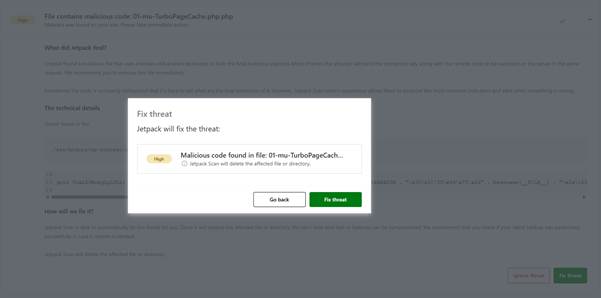
We confirmed the action and repeated the process for the other threat that supported automatic repair.
Jetpack also provides a Show auto fixers option when multiple detected threats can be handled automatically.
This can speed up the first stage of a cleanup, but every result should still be reviewed individually especially on an ecommerce website, membership platform, booking website, or other business-critical installation.
Step 4: Run Another Scan
Removing the reported files does not automatically prove that the infection is gone.
After Jetpack completed the fixes, we ran another scan.
The purpose of the second scan was to confirm that:
- The detected files had been removed
- The same files had not immediately returned
- No additional threats became visible
- The website was still functioning correctly
If an infected file returns shortly after deletion, another file, administrator account, scheduled task, database entry, or server process may be recreating it.
That is a strong sign that the website needs a deeper manual investigation.
Step 5: Check Whether the Website Still Works
After the cleanup, we tested the website manually.
This included checking:
- The homepage
- Important service and product pages
- Contact and enquiry forms
- WordPress login
- Navigation
- Mobile display
- Search functionality
- Booking or payment features
- Administrator functions
- Page speed and caching
We also cleared the WordPress cache, server cache, CDN cache, and browser cache.
Caching can continue displaying an infected or outdated version of a page even after the underlying file has been removed.
Why Deleting the Detected Files Is Not Enough
A malware file is often a symptom of a wider security problem.
If you remove the file but leave the vulnerability, stolen password, compromised administrator account, or malicious database entry behind, the attacker may return.
A more complete WordPress malware cleanup should include the following checks.
Review WordPress Administrator Accounts
Look for administrators you do not recognise.
Remove unauthorised accounts and change the passwords for every legitimate administrator.
Where possible, enable two-factor authentication.
Reset Important Passwords
Change the passwords for:
- WordPress administrators
- Hosting accounts
- SFTP or SSH access
- Database users
- Domain registrar accounts
- CDN and Cloudflare accounts
- Connected email accounts
- WordPress.com accounts connected to Jetpack
Use unique passwords rather than reusing the same password across several services.
Update WordPress, Themes and Plugins
An outdated plugin or theme may have provided the original entry point.
Update WordPress core and every legitimate theme and plugin. Remove anything that is abandoned, unused, pirated, or obtained from an untrusted source.
Deactivating an unsafe plugin is not always enough. If it is not needed, remove its files from the server.
Reinstall Clean Copies of Important Files
When a legitimate plugin or theme has been altered, reinstall a verified copy from its original source.
WordPress core files can also be replaced with clean files from the official WordPress release, while taking care not to overwrite site-specific content or configuration.
Inspect the WordPress Database
Jetpack’s documentation confirms that Jetpack Scan does not scan the website database.
A separate database review may therefore be needed to look for:
- Unauthorised administrator accounts
- Malicious JavaScript
- Spam links
- Injected redirects
- Suspicious WordPress options
- Modified site URLs
- Unfamiliar scheduled tasks
- Malicious code stored in widgets or page-builder content
This is particularly important when malware warnings disappear but unusual behaviour continues.
Check Search Engine Results
Search Google for:
site:yourdomain.com
Look for unfamiliar pharmaceutical, gambling, adult, cryptocurrency, or foreign-language pages.
Also inspect Google Search Console for:
- Security warnings
- Manual actions
- Indexed spam URLs
- Sudden indexing changes
- Unfamiliar sitemap submissions
- Unexpected users or permissions
Cleaning the server does not instantly remove hacked pages from search results. Additional cleanup and reindexing may be required.
What This Experience Taught Us
The most useful part of Jetpack was not simply the Fix threat button.
It gave us visibility.
Instead of guessing whether the website had been compromised, we could see:
How many threats had been found
Their severity levels
The affected files
Why the files were considered dangerous
Which threats could be fixed automatically
The history of the security actions taken
That visibility makes it easier to respond before an infection causes more damage.
But security should not begin after a website has already been compromised.
It should be built into the hosting and maintenance environment from the start.
Why We Recommend Pressable for Managed WordPress Hosting
Many small businesses purchase hosting based mainly on price.
They only begin evaluating backups, malware scanning, technical support, and recovery options after something goes wrong.
That can become expensive.
Downtime can interrupt enquiries, bookings, sales, donations, and other important business processes. A hacked website can also damage customer trust and organic search performance.
This is one reason Brandesis works with Pressable for managed WordPress hosting.
Every Pressable hosting plan currently includes a Jetpack Security licence. According to Pressable, this licence includes features such as:
- Real-time malware scanning
- Real-time backups
- Brute-force attack protection
- Spam protection
- Downtime monitoring
- A 30-day activity log
- Automated plugin updates
Pressable currently values the included Jetpack Security licence at $239 per website per year.
Pressable also maintains its own website backups, giving customers an additional recovery option alongside Jetpack Backup. You can review the current activation process in Pressable’s Jetpack Security guide.
No hosting platform can make a WordPress website completely immune to attacks. However, managed hosting can provide stronger monitoring, backups, support, and recovery tools than basic unmanaged hosting.
Is Your Current WordPress Hosting Giving You Enough Protection?
Ask these questions:
- Does your website receive real-time malware scans?
- Are backups created automatically?
- Can you restore the website without waiting several days?
- Will your host help investigate a security problem?
- Do you have an activity log showing important changes?
- Are vulnerable plugins identified quickly?
- Does someone regularly update and monitor the website?
If you cannot confidently answer those questions, your business may be carrying more website risk than you realise.
Move Your WordPress Website to Pressable With Brandesis
Brandesis helps businesses plan, build, manage, and improve WordPress websites.
If your website has been infected or you want a more secure hosting environment before that happens we can help you:
- Review your current website and hosting
- Identify visible security and maintenance risks
- Plan a safer migration
- Move your website to Pressable
- Configure Jetpack Security
- Test the website after migration
- Establish an ongoing WordPress maintenance process
Request a WordPress hosting and security assessment from Brandesis.
We will review your current setup and help you determine whether Pressable managed WordPress hosting is the right fit for your website.
Partner disclosure: Brandesis may receive a commission when a customer purchases Pressable hosting through our partner link. This does not increase the customer’s hosting price. We recommend solutions based on their suitability for the website and business.
Frequently Asked Questions
Can Jetpack remove malware from WordPress?
Additionally, Jetpack can automatically repair many recognised file-based threats. However, depending on the threat, it may replace an altered file, remove a malicious file, or update a vulnerable plugin. In some cases, it may not be able to repair every infection automatically.
Does Jetpack scan the WordPress database?
No. Jetpack states that its scanner checks selected WordPress files and directories but does not scan the website database.
A database review may be necessary if suspicious redirects, users, links, scripts, or content remain after infected files are removed.
Should I click “Ignore threat” in Jetpack?
Only ignore a threat after confirming that it is a false positive.
As a result, ignoring a genuine malicious file does not remove the risk. If you are unsure, ask an experienced WordPress developer or security professional to review the warning.
What should I do if the malicious file returns?
If a deleted file returns, something else may be recreating it.
Possible causes include another backdoor, a compromised administrator account, a malicious scheduled task, an infected database entry, stolen server credentials, or another website inside the same hosting account.
The website will need a deeper security investigation.
Is Pressable hosting completely hack-proof?
No website or hosting provider can promise complete immunity from every attack. Pressable combines managed WordPress infrastructure with backups, security controls, technical support, and an included Jetpack Security licence. These tools can improve prevention, detection, and recovery.
Can Brandesis migrate an existing WordPress website to Pressable?
Yes. Additionally, Brandesis can assess website, plan migration, relocate to Pressable, set up security tools, and test functionality after the move.